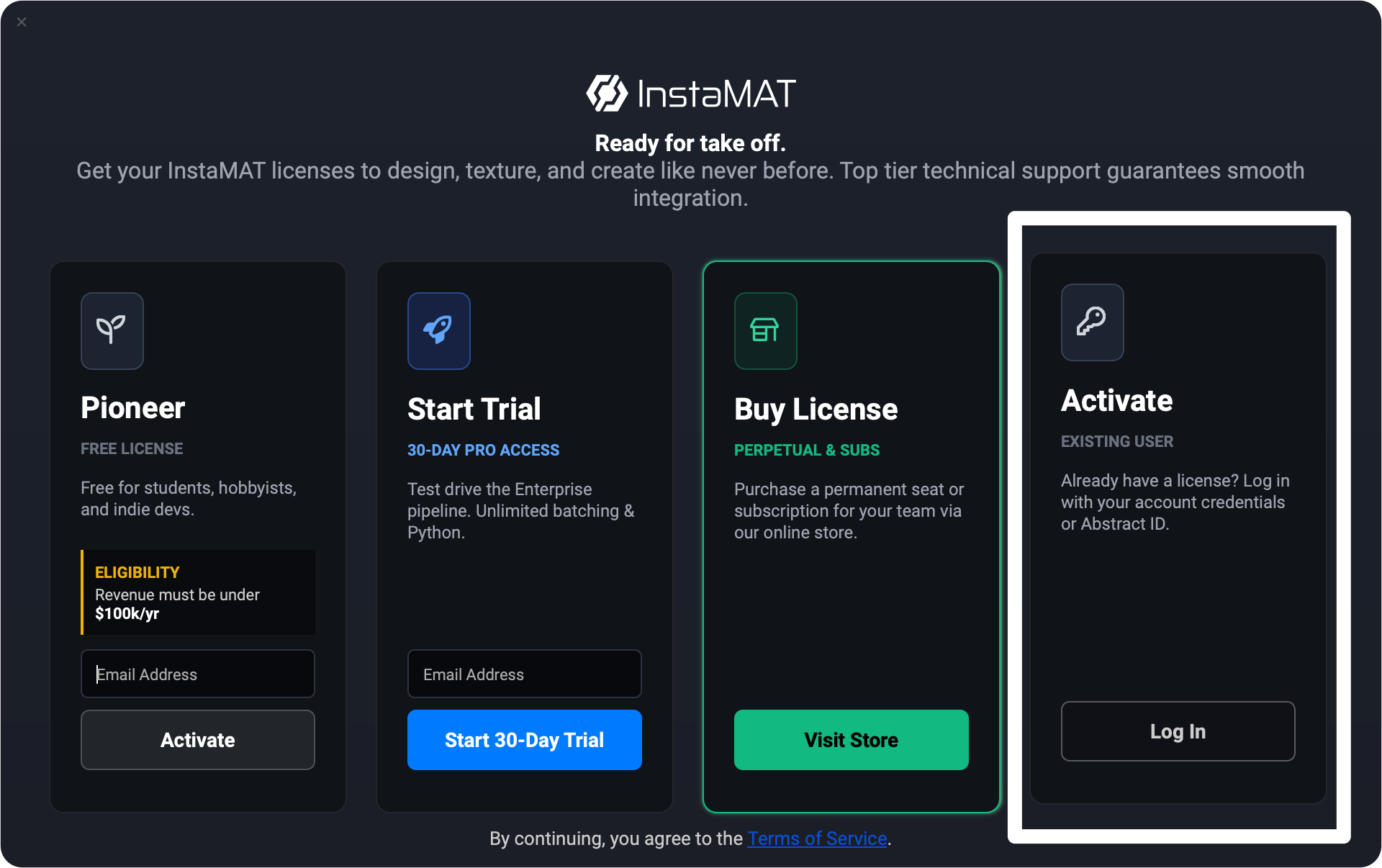
I waited a few days but the same situation is still happening. Every time I log in I get the following message you have an active license and are not eligible for a Pioneer license. I checked again on the cloud.instamat.io website and my active license is the InstaMAT Pioneer License
Hello @debe, thank you for your continued support.
Important Context: This is my very first registration and first attempt to activate a Pioneer license. I have never activated InstaMAT on any other device before, and this is a brand new Abstract account created specifically for this license.
I would like to provide an update on the troubleshooting steps I have performed based on community guidelines and documentation:
Permissions: I manually granted “Full Control” permissions to the folder C:\ProgramData\InstaMAT.
Antivirus: I manually added the executable C:\Program Files\InstaMAT Studio\InstaMAT Studio.exe to the “Controlled Folder Access” (Ransomware Protection) allow list in Windows via PowerShell.
Observed Behavior: Despite these configurations, the software successfully generates a temporary file (with a UUID name) while running, but this file is immediately deleted upon closing the application. The permanent InstaMAT.license file is never created.
Based on my research and similar reports from new users, this specific behavior (temporary file disappearing despite full permissions) often indicates a synchronization issue or a “ghost activation” stuck on the server side during the initial account setup, which prevents the new license from being written permanently.
Could you please kindly check if there are any issues with my new account in your administrative panel and perform a manual reset of my activations? I believe this might allow the Pioneer license to be written correctly.
I remain at your disposal for any further tests you might need. Thank you very much for your help!
When activating InstaMAT, are you selecting the Pioneer option on the left or the Activate option on the right? Now that you have a Pioneer license, you should choose the “Log In” button in the Activate card on the right. Does this work?